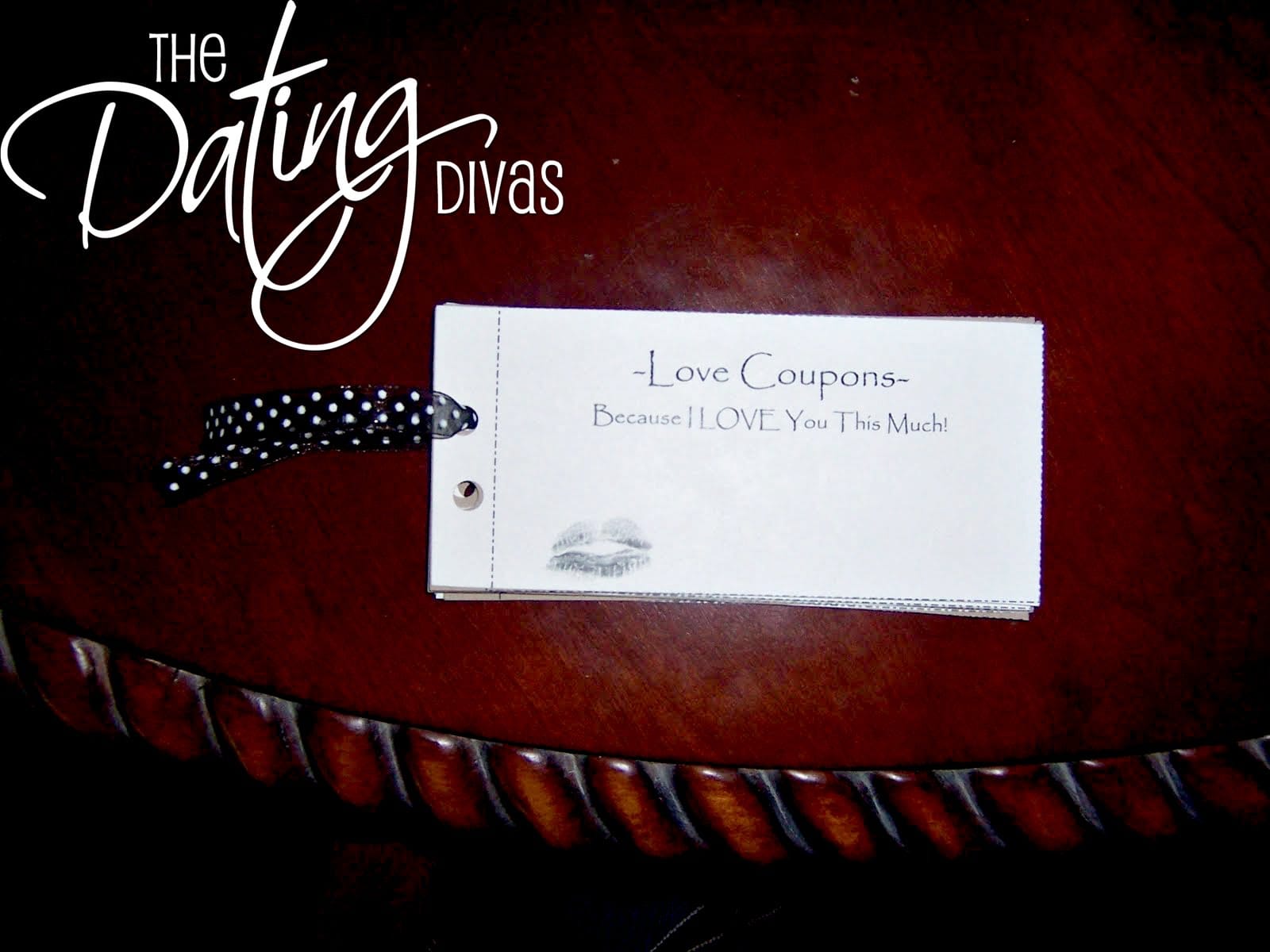
I am so excited to be able to do this post for Sisters' Stuff! My name is Cami and I am part of The Dating Divas -
www.thedatingdivas.com. We are dedicated to strengthening marriages - one date at a time! Below is a cute gift I put together for my hubby, letting him know how special he is to me. Enjoy!
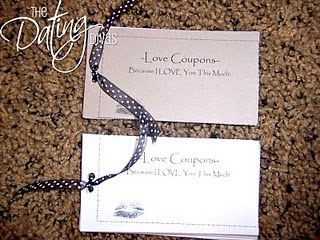
Have you ever really wanted to give your spouse a great gift, but didn't have the budget to do so? Well, me too! That is why I created this awesome coupon book! This little book will tell your spouse just how much you love him/her, as well as keeping things fun and different. There are coupons for staying home or going out, and even a blank one to have your spouse fill out! I decided to make this into an easy step by step process so
everyone can follow it. You never know when you might need to whip up a set of "love coupons"!! :)
Before you start, if you want to download my coupons, go
HERE. OR...you can create your
own by following my steps below.
To create your own...
Step 1- Open up a new document in Microsoft Word
Step 2 - Under the tab “Mailings” - click on the “Labels” button
Step 3 - A pop-up will appear, click on the “Options” button toward the bottom right-hand corner
Step 4 - Another pop-up will appear, select Avery US Letter
Step 5 - There is a box where you can select the product number. Scroll down until you get to number 5392, and select that one
Step 6 - Push OK
Step 7 - It will then bring you back to the 1st pop-up box. In that box there is a tab (toward the bottom left) that says “New Document”. Push that button.
Step 8 - Now you want to go to the top of Word and select the “Page Layout” tab.
Step 9 - Select the “Orientation” tab.
Step 10 - Click on the “Landscape” option.
Step 11 - Now click on the “Margins” button.
Step 12 - Select the “Custom Margins” button at the bottom.
Step 13 - You want to have the top and bottom margins be .5” and the right and left at .3” (a pop-up might appear that says that these settings are outside the normal range. Just click 'ok' - NOT fix!)
Step 14 - I chose to do a cute border around my coupons, but it is totally an OPTION not a MUST. If you want each of the boxes to have a border, select the “Page Borders” button (in the “Page Layout” tab).
Step 15 - Select which border you want and the size. You can also select where the borders will go (just on the outsides, insides, or all 4 sides of the box). I did mine around all 4 sides.
Step 16 - Your coupons are now ready to make cute! I, of course, wanted a cute font so I chose to use the font “Papyrus”. I also wanted a cute picture on the coupons. I found a cute picture of some lips in the clip art section.
Step 17 - I then added a text box on each coupon, where I typed each coupons "value" into. To find a text box go to the “Insert” tab in Word and select the “Text Box” button. You can place the text box anywhere you want to on the coupons. I centered mine.
Step 18 - Now you are ready to type. Make sure you make your first coupon similar to a title page, explaining what this book is. Once you have finished typing your coupons, they are ready to print.
Step 19- I printed mine on 2 different colors of card stock (and alternated them through the whole book). Print the coupons.
Step 20 - Now you get to cut each coupon out. Make sure they are all the same size. (It's easiest to use a paper cutter, but if you don't have one scissors will work just fine too)
Step 21 - To bind, I punched 2 holes on the left side of each coupon (make sure to line all them up properly), then I alternated my colors and stacked them in a pile.
Step 22 - I then cut about 4-6 inches of ribbon, put it through the holes, and tied a knot.
Step 23 - Now you are finished. Have fun!